2. A simple chart
In this lab we are going to create our very first Helm chart and deploy it.
Task 2.1: Create Chart
First, let’s create our chart. Open your favorite terminal and make sure you’re in the workspace for this lab, e.g. cd ~/<workspace-helm-training>:
helm create mychart
You will now find a mychart directory with the newly created chart. It already is a valid and fully functional chart which deploys a nginx instance. Have a look at the generated files and their content. For an explanation of the files, visit the Helm Developer Documentation
. In a later section you’ll find all the information about Helm templates.
Task 2.2: Install Release
Before actually deploying our generated chart, we can check the (to be) generated Kubernetes resources with the following command:
helm install --dry-run --debug --namespace $USER myfirstrelease ./mychart
Finally, the following command creates a new release and deploys the application:
helm install --namespace $USER myfirstrelease ./mychart
Note
Use thehelm upgrade -i command, instead of helm install or helm upgrade depending on whether the release is already installed or not.With kubectl get pods --namespace $USER you should see a new Pod:
NAME                                     READY   STATUS    RESTARTS   AGE
myfirstrelease-mychart-6d4956b75-ng8x4   1/1     Running   0          2m21s
You can list the newly created Helm release with the following command:
helm ls --namespace $USER
NAME            NAMESPACE       REVISION  UPDATED                                   STATUS    CHART        APP VERSION
myfirstrelease  <namespace>     1         2021-04-14 14:29:58.808282266 +0200 CEST  deployed  mychart-0.1.01.16.0
Task 2.3: Expose the application
Our freshly deployed nginx is not yet accessible from outside the Kubernetes cluster. To expose it, we have to make sure a so called ingress resource will be deployed as well.
Also make sure the application is accessible via TLS.
A look into the file templates/ingress.yaml reveals that the rendering of the ingress and its values is configurable through values(values.yaml):
{{- if .Values.ingress.enabled -}}
{{- $fullName := include "mychart.fullname" . -}}
{{- $svcPort := .Values.service.port -}}
{{- if semverCompare ">=1.14-0" .Capabilities.KubeVersion.GitVersion -}}
apiVersion: networking.k8s.io/v1
{{- else -}}
apiVersion: extensions/v1beta1
{{- end }}
kind: Ingress
metadata:
  name: {{ $fullName }}
  labels:
    {{- include "mychart.labels" . | nindent 4 }}
  {{- with .Values.ingress.annotations }}
  annotations:
    {{- toYaml . | nindent 4 }}
  {{- end }}
spec:
  {{- if .Values.ingress.tls }}
  tls:
    {{- range .Values.ingress.tls }}
    - hosts:
        {{- range .hosts }}
        - {{ . | quote }}
        {{- end }}
      secretName: {{ .secretName }}
    {{- end }}
  {{- end }}
  rules:
    {{- range .Values.ingress.hosts }}
    - host: {{ .host | quote }}
      http:
        paths:
          {{- range .paths }}
          - path: {{ .path }}
            backend:
              serviceName: {{ $fullName }}
              servicePort: {{ $svcPort }}
          {{- end }}
    {{- end }}
  {{- end }}
Thus, we need to change this value inside our mychart/values.yaml file. This is also where we enable the TLS part:
Note
Make sure to replace the <namespace> accordingly.
ingress:
  enabled: true
  hosts:
    - host: mychart-<namespace>.training.cluster.acend.ch
      paths:
        - path: /
          pathType: ImplementationSpecific
  tls:
    - hosts:
        - mychart-<namespace>.training.cluster.acend.ch
Apply the change by upgrading our release:
helm upgrade --namespace $USER myfirstrelease ./mychart
This will result in something similar to:
Release "myfirstrelease" has been upgraded. Happy Helming!
NAME: myfirstrelease
LAST DEPLOYED: Wed Dec  2 14:44:42 2020
NAMESPACE: <namespace>
STATUS: deployed
REVISION: 2
NOTES:
1. Get the application URL by running these commands:
  http://mychart-<namespace>.training.cluster.acend.ch/
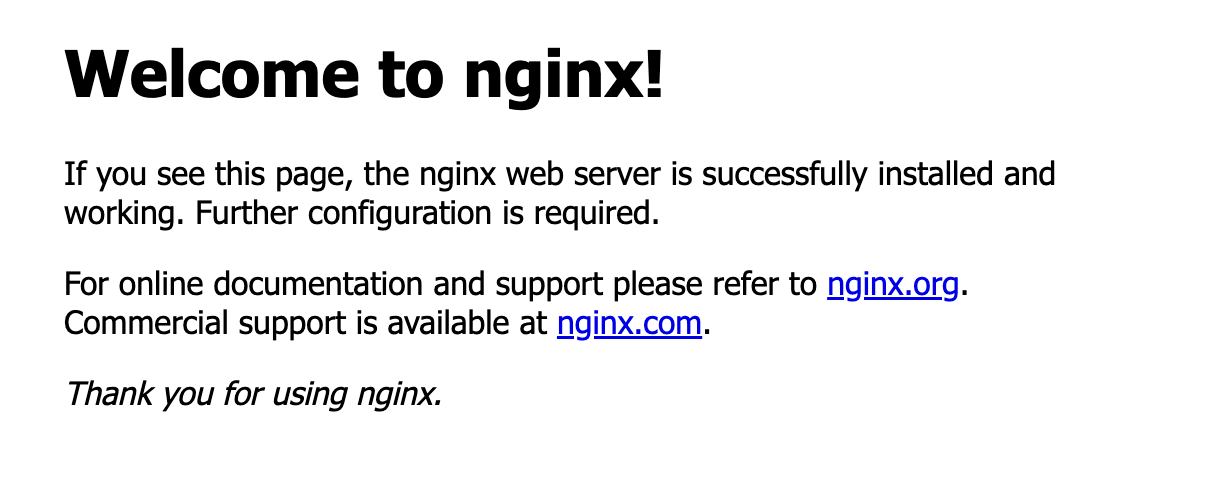
Check whether the ingress was successfully deployed by accessing the URL https://mychart-<namespace>.training.cluster.acend.ch/
You should see the Nginx welcome page.
Task 2.4: Overwrite value using commandline param
An alternative way to set or overwrite values for charts we want to deploy is the --set name=value parameter. --set name=value can be used when installing a chart as well as upgrading.
Update the replica count of your nginx Deployment to 2 using --set name=value
Solution Task 2.4
helm upgrade --namespace $USER --set replicaCount=2 myfirstrelease ./mychart
Values that have been set using --set can be reset by helm upgrade with --reset-values.
Verify the replicaCount with the following command:
kubectl get pods --namespace $USER
NAME                                     READY   STATUS    RESTARTS   AGE
myfirstrelease-mychart-c95cb97d6-g76rc   1/1     Running   0          10m
myfirstrelease-mychart-c95cb97d6-tqztc   1/1     Running   0          8m25s
Task 2.5: Rollback a release
Helm also provides the functionality to roll back a release to a specific revision number.
Every change you make to a release by installing, upgrading and even rollback, it will increase the REVISION. The deployed revision can be displayed with the following command:
helm ls --namespace $USER
NAME            NAMESPACE       REVISION  UPDATED                                   STATUS    CHART        APP VERSION
myfirstrelease  <namespace>     3         2021-04-14 14:29:58.808282266 +0200 CEST  deployed  mychart-0.1.01.16.0
Let’s now rollback our release myfirstrelease to revision 2.
helm rollback myfirstrelease 2 --namespace $USER
The replicaCount should be back down to 1 after the rollback. Check if that’s true with the following command:
kubectl get pods --namespace $USER
NAME                                     READY   STATUS    RESTARTS   AGE
myfirstrelease-mychart-c95cb97d6-g76rc   1/1     Running   0          10m
Task 2.6 Explore values.yaml
Have a look at the values.yaml file in your chart and study all the possible configuration params introduced in a freshly created chart.
Task 2.7: Remove release
To remove an application, simply remove the Helm release with the following command:
helm uninstall myfirstrelease --namespace $USER
Do this with our deployed release. With kubectl get pods --namespace $USER you should no longer see your application Pod.